Save the Date Ideas Digital-First Couples Can Send
Your friend might open a save-the-date in the text thread you use every week. Send the same card to your aunt from a service she’s never heard of and it could sit unopened in her inbox. I would decide how each household will receive the announcement before picking the artwork. Write down the sender name and delivery route each guest will see. A different typeface won’t help an email that went to an old address.
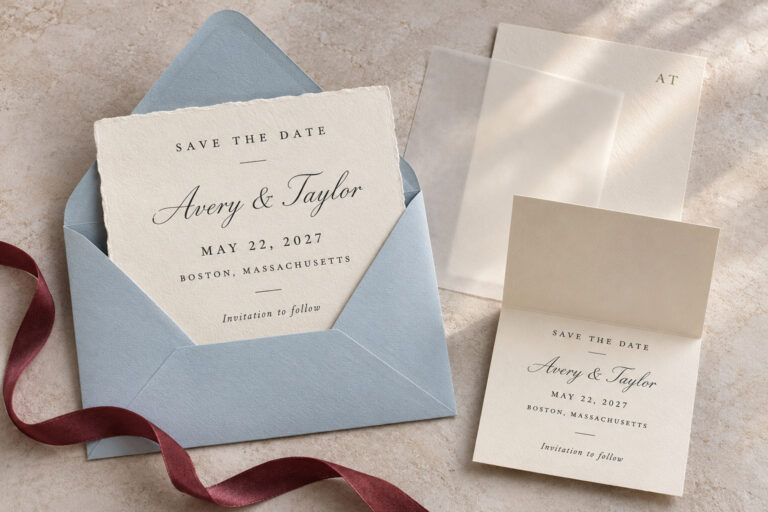
Start with one approved set of wedding details. Start with the message a guest will recognize. Add artwork if you want it, and give a wedding page its own job, such as keeping the hotel information up to date. The aim is for guests to get the date right even if they never tap the artwork, and to know where to look again when they start making plans.
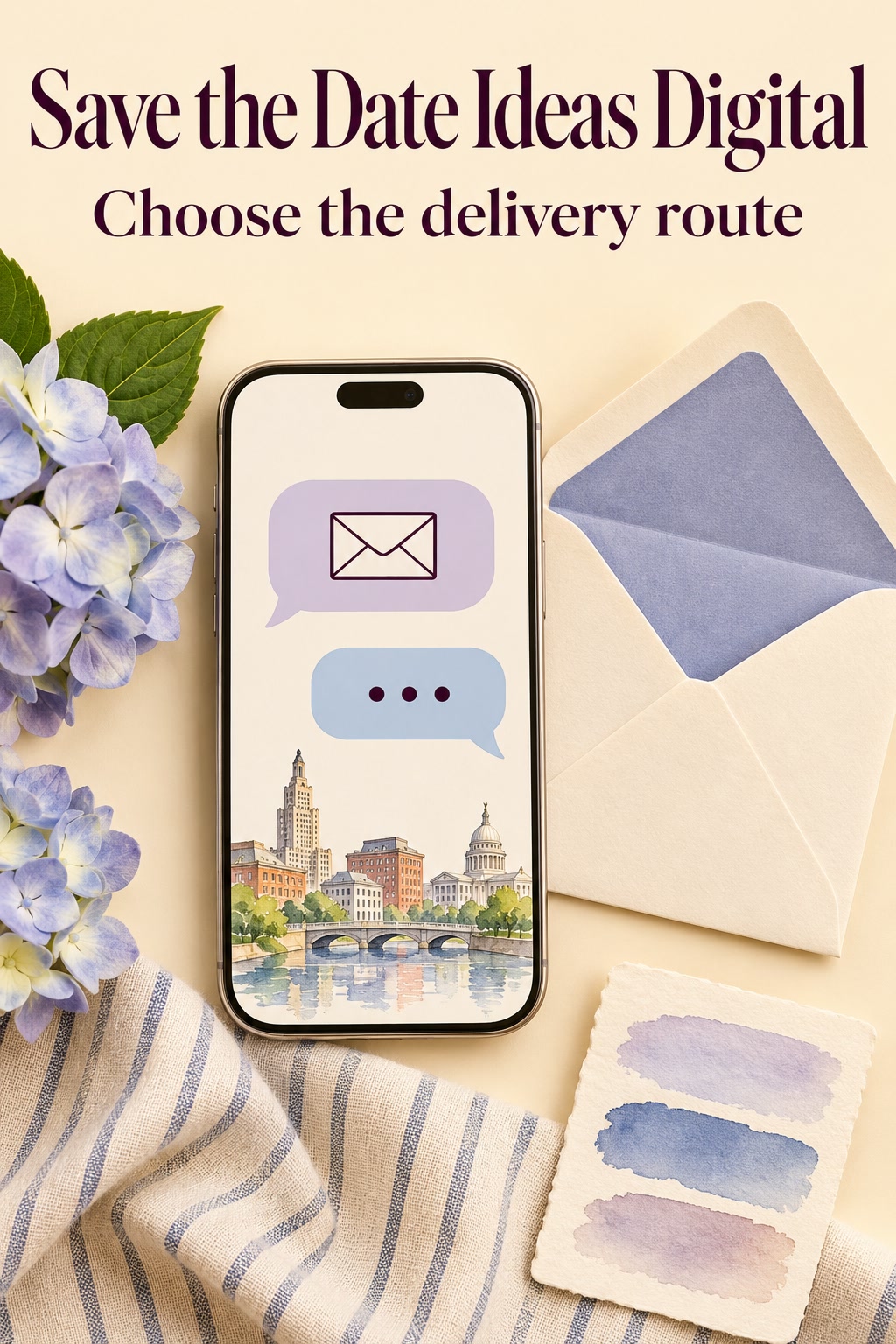
Find out how the announcement could go missing
Check who can actually receive it
Open your guest list and look at how you last contacted the people on it. There may be an old email address you haven’t used since a friend changed jobs, a shared family inbox, or a relative you only hear from in a particular chat. Write down the people covered by each invitation and where you last reached them. One household can have two contact entries if the partners live apart or keep separate calendars.
I’d leave a contact marked “check” until you know where to send it. If you’re unsure whether a cousin still checks an old address, ask for the one they’d use to plan a trip. If you plan to use a card service, look at its delivery settings before importing your list. Check what sender name a guest will see, how to identify a failed send, and whether there’s a separate process for overseas numbers. Bliss & Bone’s online save-the-date guide shows one example of a service that lets couples use different channels and track bounced addresses. Check the same questions with the service you choose.
Turn wedding inspiration into a plan you can actually follow.
Zarellea brings your guest list, budget, vendors, and day-of details into one shared space — so no beautiful idea gets lost in the shuffle.
Separate receiving the message from finding the date
Send yourself a draft and look only at the notification. A line that says “You received a card” gives a guest little reason to recognize the message as yours. Put your names and the purpose in the subject or the first line of a text. If the account or number is new to that guest, begin the message with a personal introduction.
Then open the announcement and see what you can recover without the design. Write your names, the date with its year, and the confirmed location in the body of the message. Repeat those words as text on a hosted page. The details will still be available if the photo arrives as a tiny preview. Keep any travel detail that might change on a page you can update after sending, and use the save-the-date to point people to it. Use a line like “Hotel details to follow” if a guest needs to know that more information is coming.
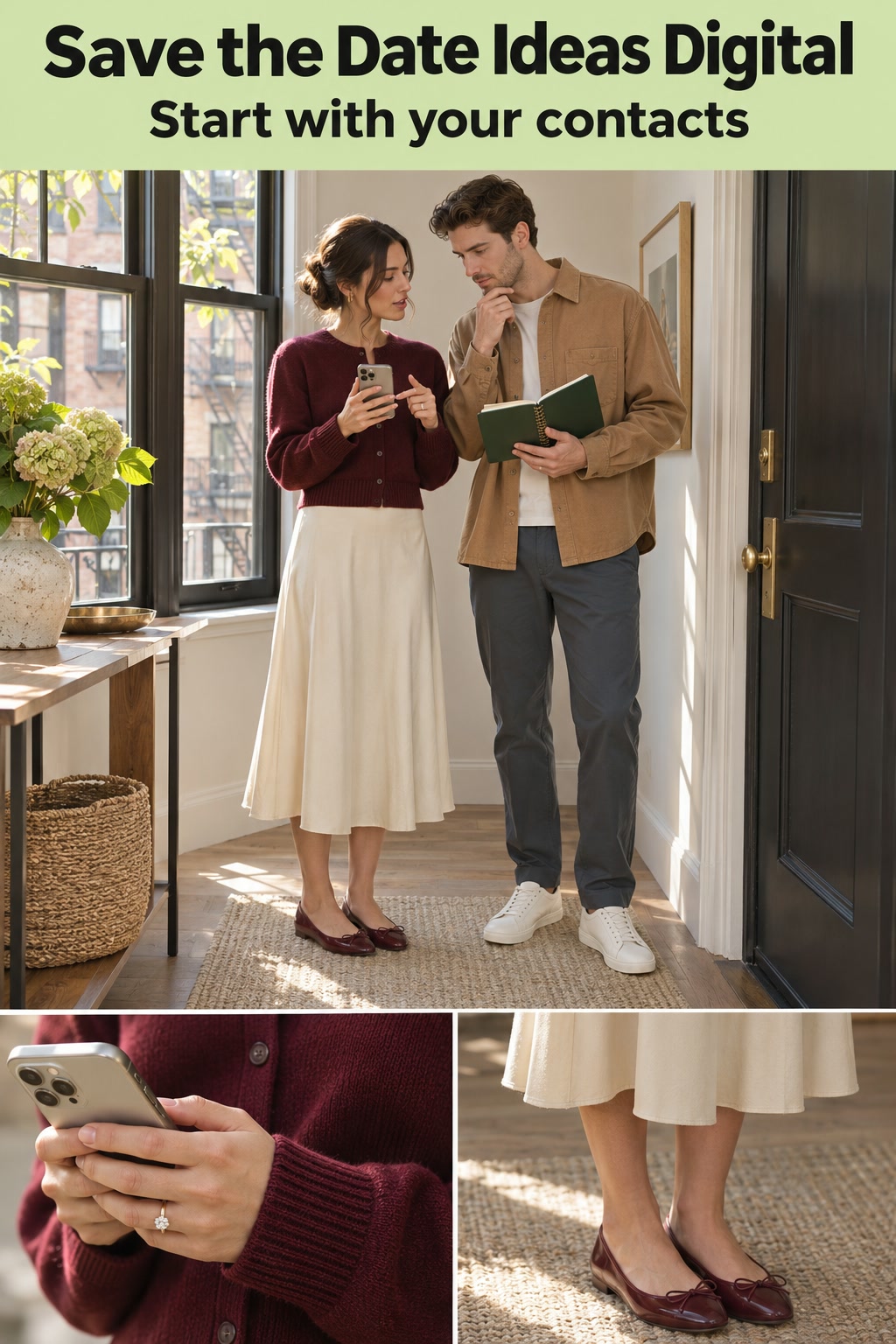
Fix the route before you pick the design
Use a personal text when the number is familiar
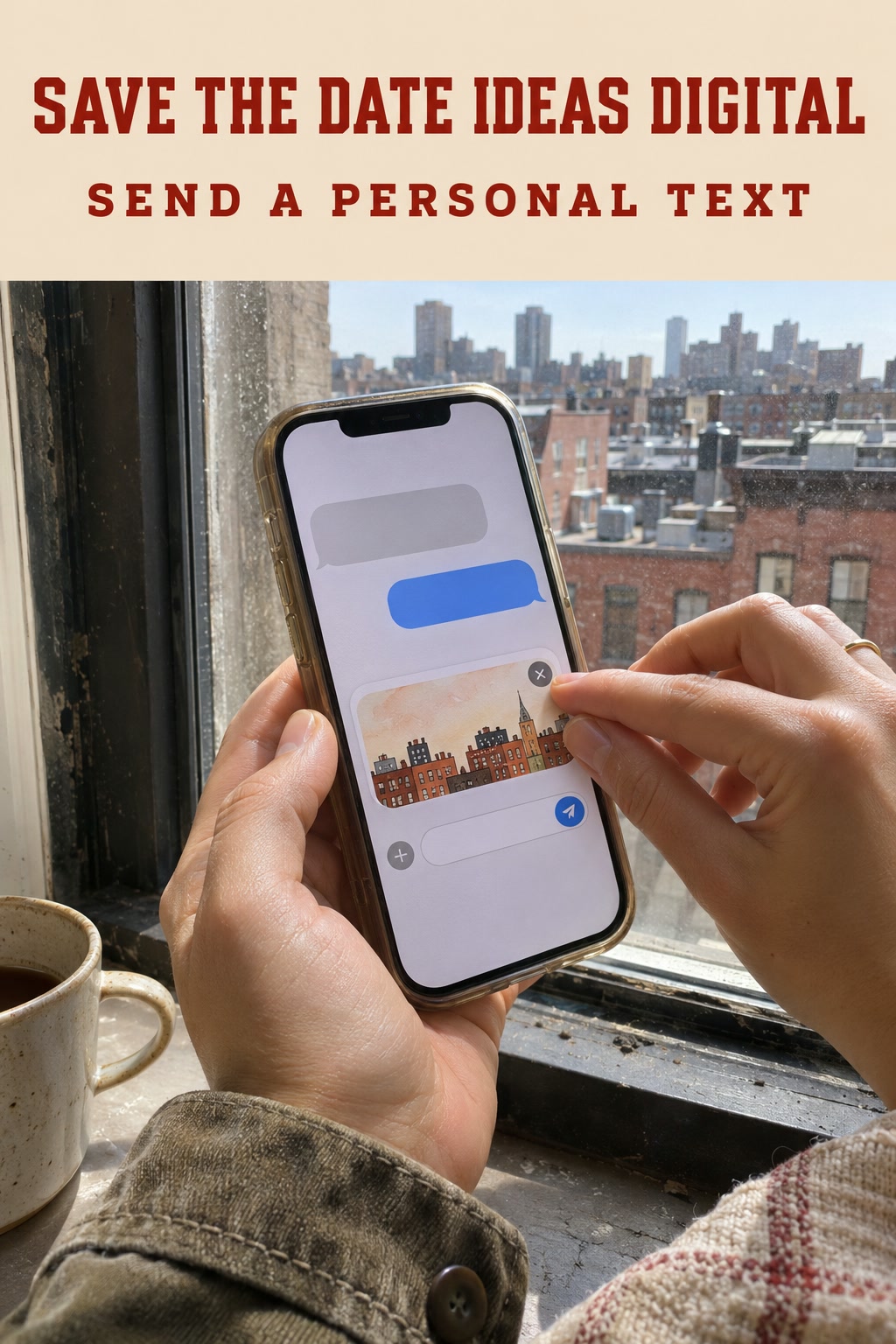
For friends you already text, put the wedding details first and attach a small illustration or photo as a second part of the message. A first line such as “Hi Maya, it’s Lena and Ben. Please save June 12, 2027, for our wedding in Providence, Rhode Island” gives the recipient the information without a separate step. Add “Invitation to follow” so the guest knows to expect another message. If the wedding site is ready, add its link on its own line so it stays easy to find within the thread.
Use separate conversations for households you would normally contact separately. A family group can be fine when everyone in it is invited and happy to plan together. I would send individual messages when a group contains people with different invitations or people who haven’t shared numbers with one another. Keep the wording natural for each conversation. You can send the same date and picture with a different greeting.
Use email when it gives the guest a place to find the details again
For households that use email to plan travel, an email with a recognizable subject is a useful choice. Try “Save our wedding date, Lena and Ben, June 12, 2027.” Put the date and place together in the body and include the image as a visual extra. A relative searching by your names can turn up the email even if the art never loaded for them. If you already know the invitation is coming by mail, say so in the email.
Ask one guest or friend you trust to look at your test from a different email app. If the main details sit below a tall image or disappear when the recipient has images turned off, move the details to the opening lines. For a small list, send individual messages from a familiar address. With a service, review one private test recipient and see what happens when you reply. The reply should land somewhere you actually read.
Use a hosted card when the link has a job
A wedding page makes sense if out-of-town guests will come back for directions, accommodation choices or later updates. The save-the-date itself can stay short. Give the reader one place to see confirmed information, and let the landing page say what is still coming. If you offer a calendar button, check that it produces an entry with the intended date and location when opened outside the account you used to create it. The Knot’s help guide shows one example of linking a wedding website from a digital card and previewing the result as a guest.
I would give a button a name that describes what the guest gets, such as “Travel information” or “Add June 12 to your calendar.” Wait to add a hotel button until it has somewhere useful to go. If you protect the site with a password, test the steps from another phone. Put the password in the same private message if the household needs it, and decide whether your announcement should direct guests to share the link at all.
Three digital announcements that solve different problems
A skyline sketch for a text with a personal opening
For a wedding in the city where you live, try a small skyline illustration after a two-sentence text. Write the city beside the date so a friend can copy both into a calendar. The sketch can stay in the conversation as a preview of where you’re taking them.
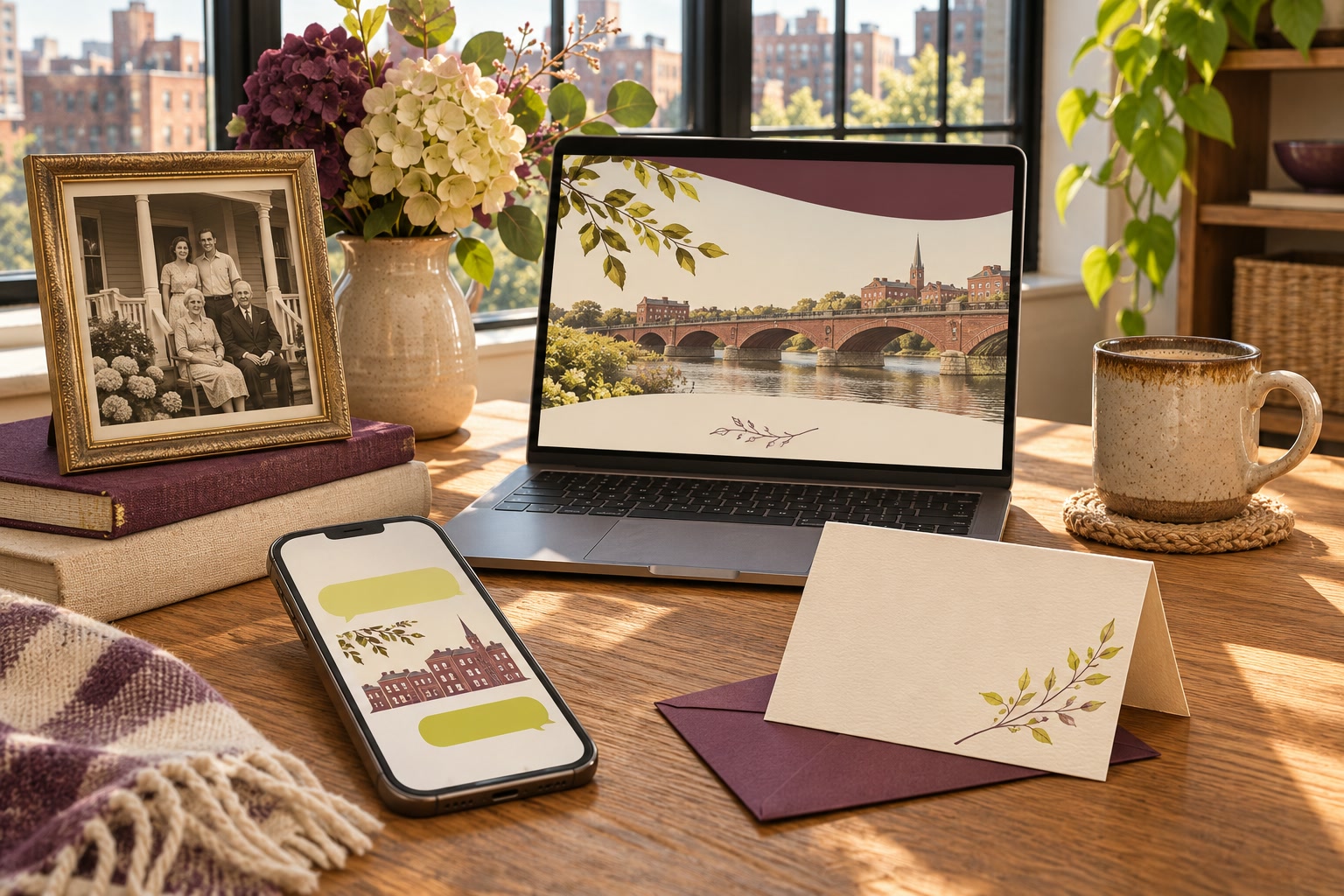
Use a tablet stylus if you want to draw the skyline directly and adjust the line weight before saving it as an image. You could also draw with pencil and photograph the sketch in daylight. Let a recognizable roofline decide the crop and keep it small enough to see without scrolling through a tall graphic. If the skyline belongs to a city people might confuse with another place, let the text spell out the actual wedding city. Let the drawing be one attachment. Put any action you want the guest to take in the message itself.
A family photo strip for a message that may be forwarded
For relatives who are likely to forward the news to each other, make a simple email with names, date, and location as text. Below that, place a narrow strip with a family photograph you can share and one recent photo of the two of you together. Keep the personal introduction short enough that the forwarded email still makes sense to a guest who didn’t see the conversation before it. Include the date again on the image only if the letters can stay big enough to read in the email.
Use an old print if the family will recognize the porch, the lake, or the people in it. Use a flatbed photo scanner if you need to make a clean copy of the print without the reflections you are seeing on a phone photo. Check both images at their actual width and crop out a distracting border before shrinking the strip. If the original is already digitized, use that file and keep the crop simple. Send the draft to yourself and forward it once. Look at what stays in the body and which text disappears into the quoted history.
A travel header for guests who will check the plans twice
Picture a wedding that will bring guests into town from several places. The saved message reads “Save June 12, 2027, for Lena and Ben’s wedding in Providence, Rhode Island.” Under it, a link labeled “Wedding weekend details” opens a page headed by a simple drawing of a bridge or a harbor. The first part repeats the date and place. A separate area below can show where to look for hotel information once it is ready. When the hotel details are ready, add them to that page so the original link still takes guests to the right place.
Keep extra events off the general page until you know who is invited to them. If a dinner applies only to a small group, you can send it later in a message to the people involved. For guests who rarely use email or texts, call them or mail one plain printed note. A blank folded note card is enough if you are writing it by hand. Use a dark fine-point pen and see whether the year can be read easily with the card sitting on a table. Give the offline guest the same date and city, and offer a phone number for later questions if the site is their only other way to look up details.
Supplies for the skyline or the offline note
Sketch the skyline in your app
Give the skyline a clean outline
Write the details for offline guests
Write the date in dark ink
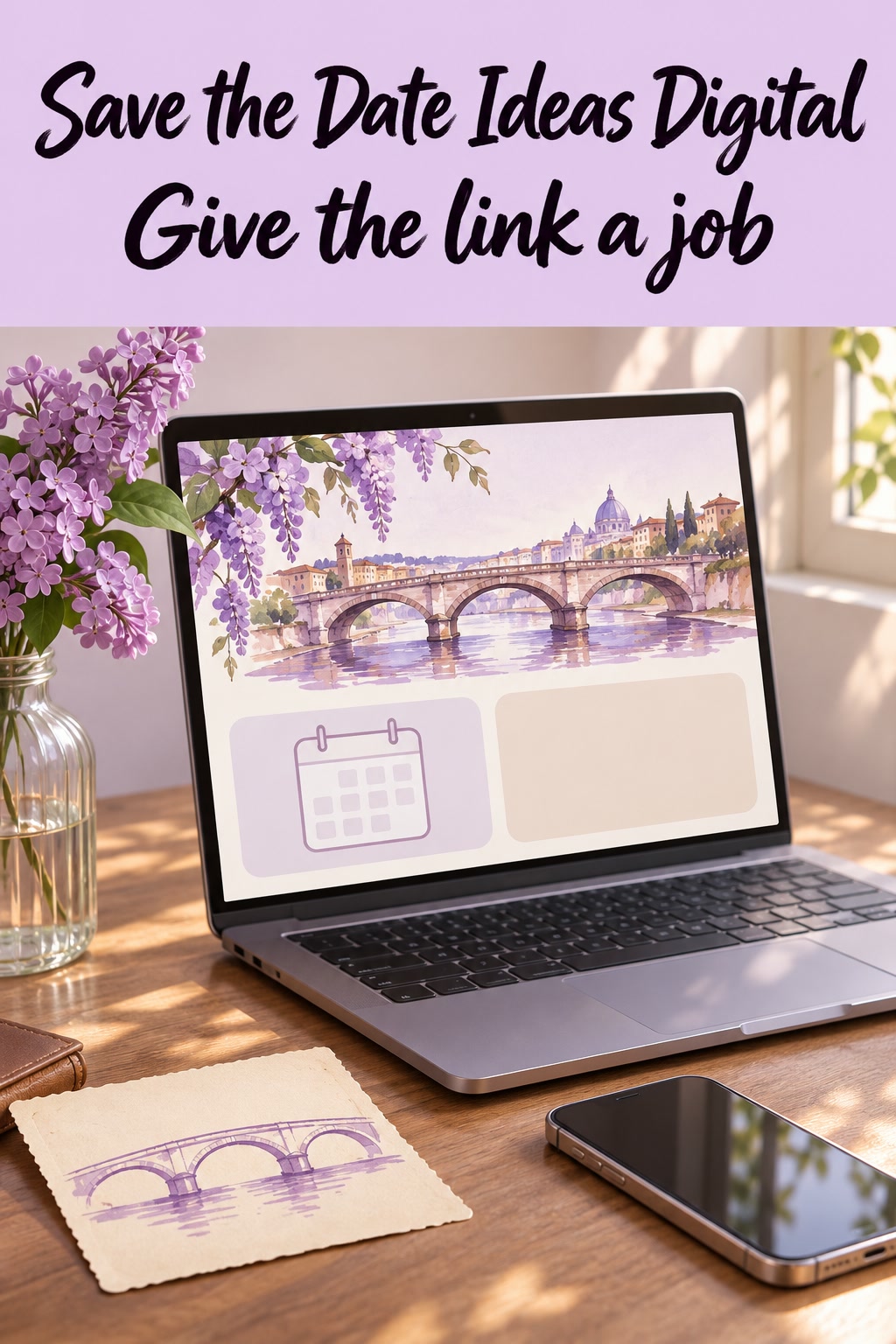
Run one test send and keep a correction ready
Check the message, the artwork, and the first link
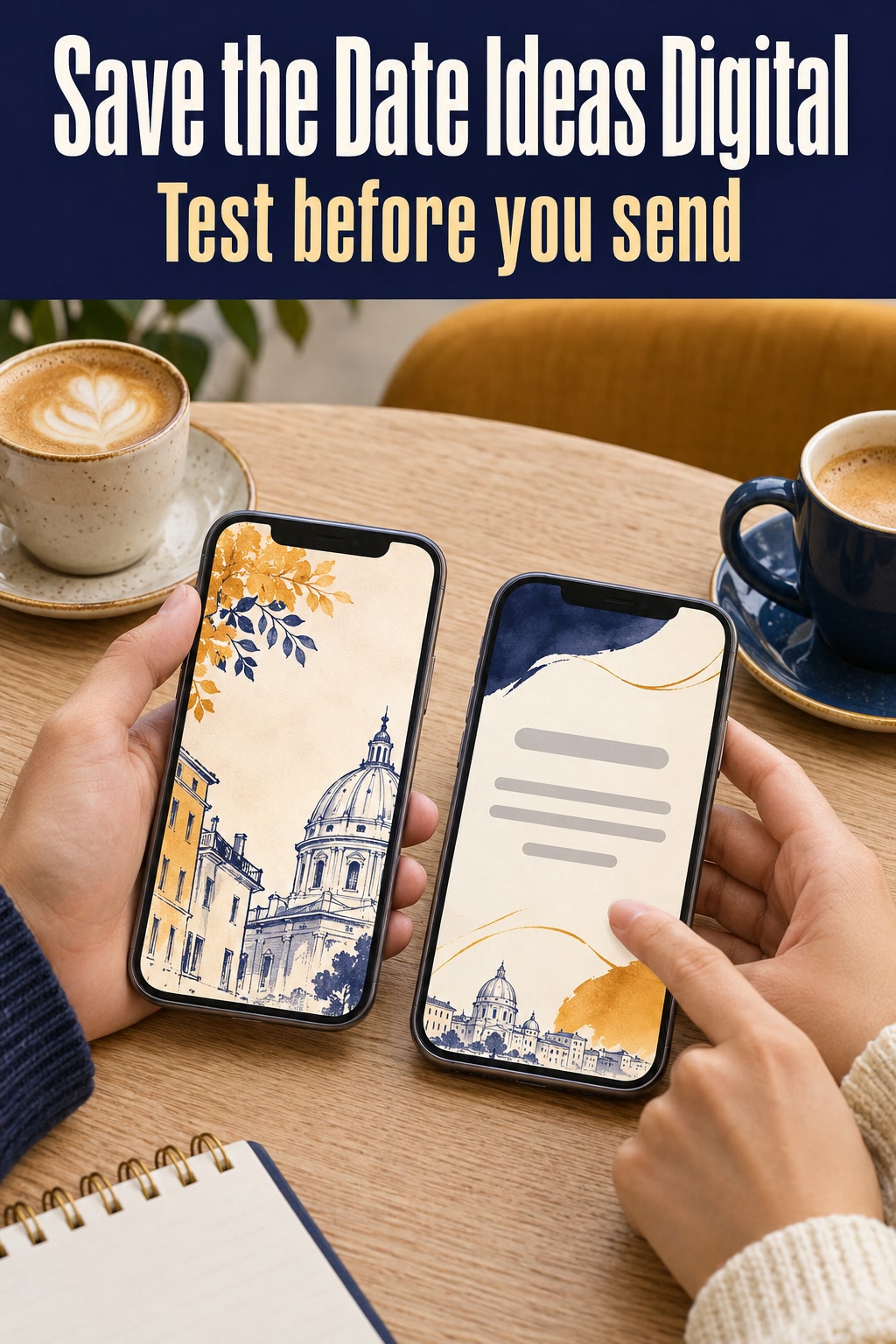
Use two testers if you can. Ask one to read the message without opening the picture and tell you what date to save. Have the other tap the link from a device outside your account and find a fact they might need, such as the city. Tell each person where to start. Let them try on their own before pointing out the date or link. A screenshot of what they actually see can help you fix the message your guests will receive.
Try opening the test from an older thread as well. If the phone preview emphasizes your illustration while cutting off the year, move the date into the first line of text. If the preview pulls the wrong page title, inspect the page and test its link again. For a service that shows opens, use an open as one clue and check actual replies or delivery errors before sending another message. A bounced email calls for a corrected address or a different route. Leave the next message for the invitation if you see no delivery problem and need no reply.
Correct the original message if something important changes
Keep a little record of the version sent, the route, and the contact for each household. If the design had the correct date but one message had a typo, you can correct the affected sends. If the wedding date changes, update the website, then send a new message that explicitly says the date has changed. Put the new full date and location near the top. If a guest might have saved the earlier date, label it “Previous date” and place it on a separate line below the new information. A new design can wait while the new date goes out in plain text.
Ask guests to update their own calendar entries when the date moves. Someone who saved the earlier image, forwarded your message or copied the date into a calendar may never see a quiet edit on the website. I’d follow up directly with the people likely to have started travel planning and check any household that had a failed send the first time around. Record the correction when you send it so a later reminder doesn’t revive the old date.
Editor’s take
I would send the simplest version a guest can recognize and find again. For a list you already reach by text, that means writing the date and place in the conversation and letting the illustration be a small bonus. I’d make a hosted page when it gives guests somewhere to check travel information or see confirmed changes. For a guest who rarely checks either route, put their number on your call list or write them a note. Before choosing a template, pick two households that communicate differently and draft the actual message each will get. If both messages make sense with images turned off, you can choose the artwork for how it looks.
Sources and methodology
Published stationery catalogs, sharing instructions and guest-planning discussions informed the delivery examples. The sample names, dates and designs are fictional. The advice on choosing a route and checking a test send reflects editorial judgment based on those sources and the problems each format can create.
FAQ
Should we send a digital save-the-date to both people in a couple?
One message can work when both people use the same inbox or normally plan as a household. If they use different addresses or handle their schedules separately, send a copy to each person and record both sends under that household. Use names in the greeting so the recipient can see who the announcement addresses.
Can we send the save-the-date before the wedding website is ready?
Yes. Send the names, date and confirmed location in the message, with a note that the invitation will follow. Add the website later when a guest can actually use it. Leave room to share the URL in a later update.
Should we attach a PDF or send an image?
Start with a small image if the artwork fits on one screen and you want the guest to see it next to the message. A PDF makes sense only if there is a reason to keep or print a document. For either format, repeat the details as readable text so the attachment is optional.
What if someone hasn’t replied?
Check whether the number or address was right and whether your service reports a failed send. If you asked people only to hold the date, treat silence as an unknown and check the channel before following up. Contact the person directly if you need to confirm they got it or know they’ll be making travel decisions soon.
Is it okay if someone forwards the link?
Decide based on what is behind the link. If you are comfortable sharing only your names, date and city, a forwarded announcement may be fine for the invited household. If the page has sensitive information, use its access controls and put a simple request in the message asking guests to keep it within the invited group. Keep names of other guests and details for smaller events off a broadly shareable page.
Can we fix a typo by editing the website alone?
If the mistake appeared only on the page and has no bearing on plans, a direct edit may be enough. Send a correction to the affected households when the error appeared in the message or attachment, or when a guest might already have written the wrong date or booked something. Give the correct detail in the correction itself.